Help
Support: OneDrive, OneNote & download help
Everything on this site is bound by limits Microsoft enforces on OneDrive and the OneNote API. This page explains what those limits are, when you'll hit them, and how to work around each one.
Opening the .one files you downloaded
When you download a class notebook (or your personal OneNote in the OneDrive zip), you receive raw .one section files — Microsoft's native OneNote format. Each .one file holds one section's pages and opens directly in OneNote desktop. This guide walks through opening them on Windows and Mac.
On Windows
- Install OneNote for Windows. If it's not already on your PC, install OneNote from onenote.com/download. The free version is enough.
- Unzip the archive. Right-click the
.zipyou downloaded → Extract All. - Open OneNote and create a local notebook. In OneNote, choose File → New → This PC and pick a folder on your computer to keep your archive in (e.g.
Documents\My Year 13 Archive). - Import the .one files. The cleanest way: right-click the new notebook in the navigation pane → Open Section → browse to your unzipped folder → select a
.onefile → click Open. Repeat for each section. They appear as tabs along the top of the notebook. - Or — double-click each file. If OneNote is your default for
.onefiles (it usually is after install), double-clicking opens each section in its own tab inside the currently open notebook.
On Mac
- Install OneNote for Mac. Get it from the Mac App Store. Free; sign in with any Microsoft account (a personal one is fine).
- Unzip the archive. Double-click the
.zipin Finder; macOS extracts it next to the original. - Important: OneNote for Mac doesn't open raw
.onefiles directly — it only reads notebooks stored in OneDrive. To open your archive on Mac you have two options:
Option A — upload to a personal OneDrive (recommended)
- Sign up for a free personal Microsoft account at signup.live.com (separate from your school account, which you'll lose access to).
- Go to onedrive.live.com in your browser, sign in, and drag the unzipped folder into the Documents area.
- Open OneNote on your Mac, sign in with that personal account, and choose File → Open Notebook. Your uploaded notebook appears under OneDrive — Personal.
Option B — open via OneNote on the web
- Upload the unzipped folder to a personal OneDrive as in Option A.
- Right-click the notebook folder in OneDrive web → Open in → OneNote. Microsoft converts the raw
.onefiles into a web-readable notebook automatically.
A safer long-term plan
Your school account stops working when you leave. Once you've opened the notebook on a personal account (Windows local notebook or personal OneDrive on Mac), keep a copy of the original .zip somewhere safe — an external drive, a personal cloud — so you always have the source files even if your account or device changes.
Downloading from OneDrive web
The simplest way to grab everything in one go is straight from the OneDrive web app. Open OneDrive, sign in with your school account, then in My files:
- Hover over the column header to reveal the round selector, then click it to select every item in the list (or tick individual files and folders).
- Click Download in the toolbar that appears. OneDrive packages everything into a single
.zipon Microsoft's servers and your browser starts the download once it's ready.
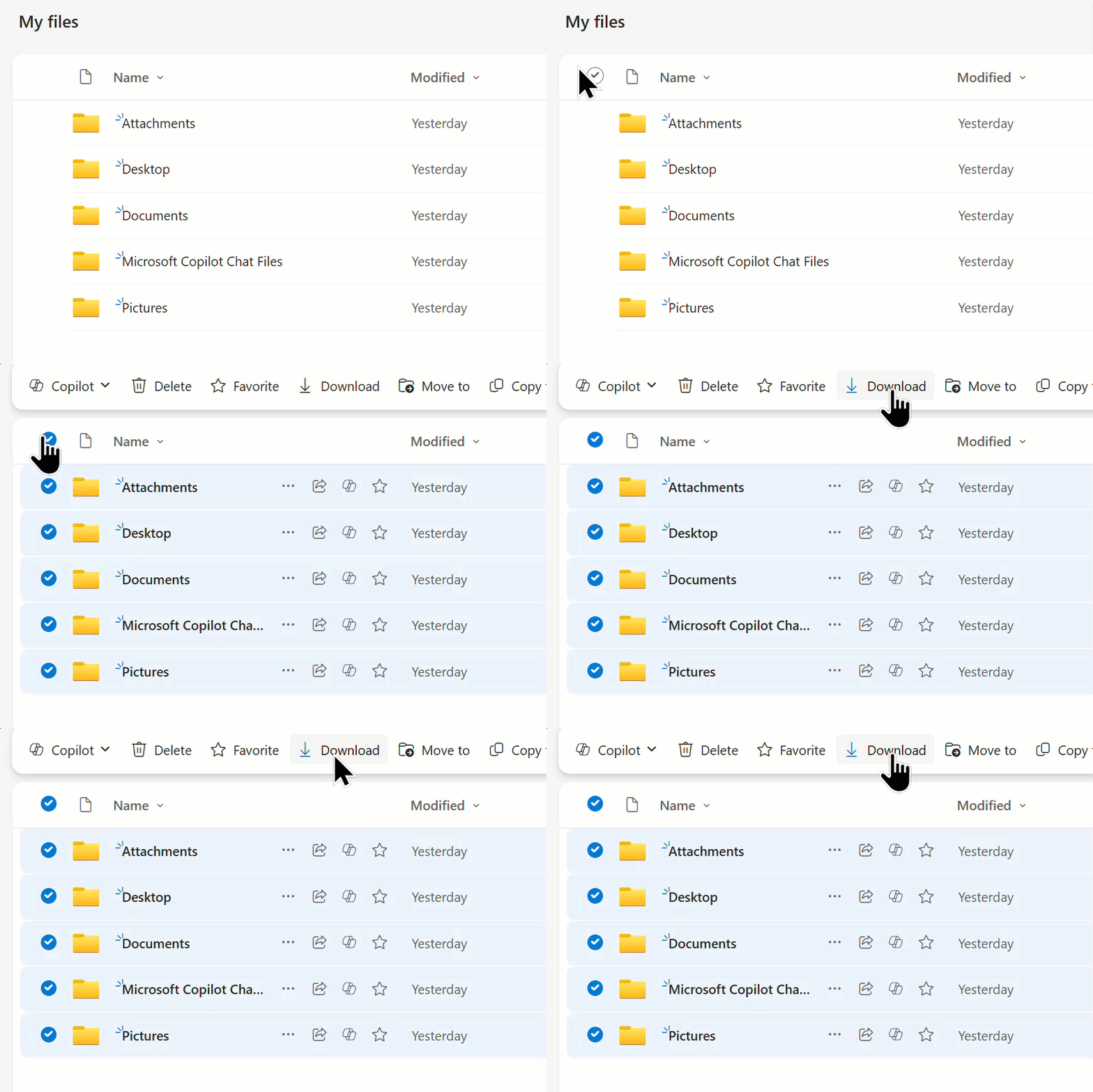
If your OneDrive is over the limits in the next section, this single zip won't work and you'll need the sync app instead — read on.
OneDrive zip download limits
When you click Download via OneDrive web (or use this site's Download as zip), Microsoft packages your files into a single .zip on their servers. That packager has hard limits:
- 20 GBTotal size of the zip.
- 10,000 filesMaximum number of files inside the zip.
- 15 GBMaximum size of any single file inside the zip.
If your selection exceeds any of these, Microsoft refuses to build the zip. This isn't something this site can lift — the cap lives on Microsoft's servers and applies equally to a download started from onedrive.com directly. Our own zip endpoint is set to the same 20 GB / 15 GB-per-file ceiling so you don't click a button that's guaranteed to fail.
What to do if you're over the limit
Use the OneDrive desktop sync app. It downloads everything at any size, resumes after interruptions, and is what Microsoft itself recommends for large drives. Steps:
- Install the OneDrive app for Windows or Mac.
- Sign in with your school Microsoft account.
- Choose where on your computer to put the synced folder. Make sure you have enough free space — this site shows your current usage.
- Right-click your OneDrive folder once it appears and pick Always keep on this device. The whole drive will download in the background; large drives take hours.
- Once everything has a green tick, copy the folder onto an external drive or to your personal cloud — that copy is yours, separate from the school account.
Alternative: split the work into batches under 20 GB and download each batch separately from onedrive.com.
Why OneNote notebooks sometimes won't list
OneNote stores each notebook as a folder, each section group as a subfolder, and each section as a .one file inside that folder. All of them live in your OneDrive. Microsoft enforces a hard ceiling on how many items can be listed from a single OneDrive at once:
- 5,000 itemsOneNote notebooks, section groups, and sections combined, in a single OneDrive.
Once your OneDrive is over that ceiling, OneNote stops listing notebooks. That's why you may see a banner saying we couldn't list your personal notebooks.
What counts (and what doesn't)
- Counts: each notebook (1), each section group (1), each section (1). Other files in your OneDrive (Word, PDF, photos, etc.) also count toward the same 5,000-item ceiling.
- Doesn't count: OneNote pages. Pages live inside
.onefiles, so a section with 2,000 pages still counts as just one item.
Class notebooks are unaffected
Class notebooks aren't stored in your personal OneDrive — they live with the class itself, and each class has its own separate 5,000-item budget. So even if your personal listing fails, the class notebooks section on the dashboard keeps working normally and you can still download your own work from each class notebook.
What to do if your personal list won't load
- Open OneNote directly. onenote.com/notebooks shows every notebook you have access to and isn't affected by this limit.
- Download the raw
.onefiles from the Your OneDrive section on the dashboard. Notebooks live inside your OneDrive as folders containing.onesection files — you can grab the underlying files even when the listing API won't enumerate them. They open in OneNote desktop. - Tidy up the library. Long-term, deleting unused notebooks or moving large folders out of OneDrive's root can bring the library back under the threshold. This is a Microsoft constraint, not ours — we can't lift it.
Other Microsoft limits worth knowing
- Single file upload to OneDrive: 250 GB. This site doesn't upload — only mentioning it in case you're shuffling files between drives.
- Path length: 400 characters. If a deeply nested file fails to download, the path may be too long for Microsoft to zip. Move it closer to your OneDrive root and try again.
- Forbidden filename characters:
* : < > ? / \ |(and a handful of reserved Windows names). Microsoft strips or rejects these during a zip download. If a file is missing from your zip, an unusual character in its name is the most likely cause.
Still stuck?
Ask your school's IT team — they have admin access to your tenant and can see things this site can't (e.g. whether a retention policy is preventing certain files from leaving). If you're an IT admin and want to escalate, Microsoft's own documentation for the limits above is the canonical reference: